This comprehensive guide will walk you through the entire process of creating your very first custom indicator in TradingView from scratch using Pine Script.
TradingView is one of the world’s most popular charting platforms, largely due to its flexibility and powerful proprietary programming language: Pine Script. While TradingView offers hundreds of built-in technical indicators, coding your own custom indicator allows you to bring your unique trading strategy, rules, and hypotheses to life.
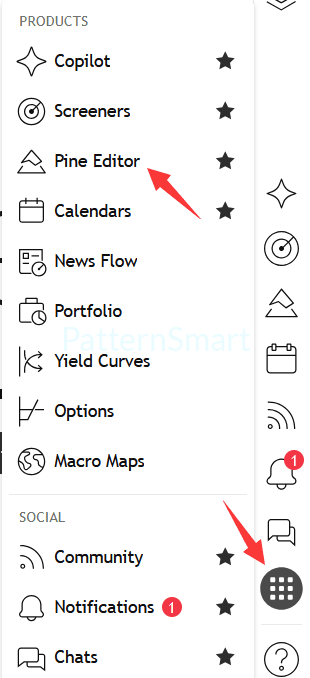
Step 1: Open the Pine Editor
The Pine Editor is the built-in development environment where you write, test, and edit your code.
- Open any chart on TradingView.
- Look at the very bottom panel of the screen. You will see several tabs like Stock Screener, Text Notes, Pine Editor, and Strategy Tester.
- Click on Pine Editor to open the coding workspace.
Step 2: Create a New Script
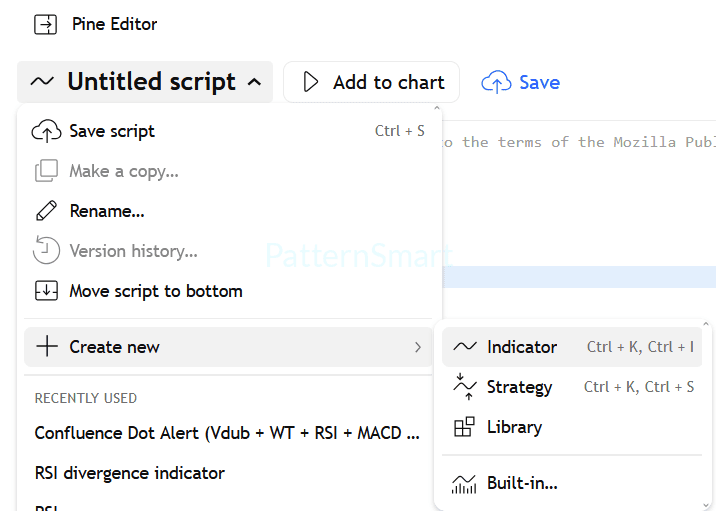
Once the Pine Editor is open, you can start a fresh template:
- Click on the downward-facing arrow next to the script’s name or active workspace in the top-right corner of the Pine Editor.
- Select Create new from the dropdown menu.
- Choose Indicator.
TradingView will automatically populate a basic boilerplate template for a minimal indicator.
Step 3: Understand the Core Structure of Pine Script
Every Pine Script indicator follows a specific structural layout:
- Compiler Directive (
//@version): Tells TradingView which version of Pine Script your code uses (e.g.,//@version=5or//@version=6). - The
indicator()Function: Declares the script as an indicator, sets its name, and dictates whether it overlays directly on the main price chart or opens in a separate panel underneath. - Logic and Calculations: Where you process price data (open, high, low, close, volume) using mathematical and technical analysis functions.
- Plotting and Visualization: Commands that instruct TradingView how to visually display your calculations on the screen (lines, shapes, background colors).
Step 4: Write Your Custom Indicator Code
Let’s build a practical, highly useful custom indicator: a Dual Moving Average Crossover with Visual Signals. This indicator calculates a fast moving average and a slow moving average, plotting lines on the chart and marking buy/sell crossover points.
Clear out the default boilerplate text and paste the following code into your Pine Editor:
Pine Script
//@version=6
indicator("Custom MA Crossover", overlay=true)

// 1. Define User Inputs
fastLength = input.int(9, title="Fast MA Length", minval=1)
slowLength = input.int(21, title="Slow MA Length", minval=1)

// 2. Calculate Technical Values using the built-in 'ta' library
fastMA = ta.ema(close, fastLength)
slowMA = ta.ema(close, slowLength)

// 3. Plot the Moving Average Lines on the Chart
plot(fastMA, title="Fast EMA", color=color.blue, linewidth=2)
plot(slowMA, title="Slow EMA", color=color.orange, linewidth=2)

// 4. Determine Crossover Conditions
buySignal  = ta.crossover(fastMA, slowMA)
sellSignal = ta.crossunder(fastMA, slowMA)

// 5. Plot Visual Shapes on the Chart when Crossovers Occur
plotshape(buySignal, title="Buy Signal", style=shape.triangleup, location=location.belowbar, color=color.green, size=size.small)
plotshape(sellSignal, title="Sell Signal", style=shape.triangledown, location=location.abovebar, color=color.red, size=size.small)

// 6. Optional: Add Alerts for Real-Time Notification
alertcondition(buySignal, title="Bullish Crossover", message="Fast MA crossed above Slow MA!")
alertcondition(sellSignal, title="Bearish Crossover", message="Fast MA crossed below Slow MA!")
Step 5: Add Inputs and Parameters to Customize Your Indicator
Hardcoding values into your script limits its flexibility. By utilizing the input() function, you allow yourself (or other users) to easily modify settings directly from the chart interface without editing code:
input.int(): For whole numbers (e.g., lookback periods, lengths).input.float(): For decimal values (e.g., multipliers, deviation thresholds).input.source(): To let users choose whether calculations run based onclose,open,high, orlow.
When you add inputs, TradingView automatically generates a settings menu (the gear icon next to your indicator’s name on the chart) where these values can be adjusted dynamically.
Step 6: Test, Save, and Add to Chart
Before sharing or relying on your indicator, you need to compile and test it:
- Add to Chart: Click the “Add to chart” button located at the top-right of the Pine Editor. If there are any syntax errors, TradingView will flag them in a console log at the bottom. Once compiled successfully, the indicator will instantly render on your active chart.
- Save the Script: Click the Save button in the editor and give your custom indicator a descriptive name. It will now be stored safely in your personal cloud script library.
- Test Across Assets: Check your indicator on different timeframes (e.g., 15m, 1h, 1D) and asset classes (crypto, stocks, forex) to ensure it behaves robustly and isn’t over-optimized (“curve-fitted”) to a single chart.
Summary Tips for Advanced Customization
- Avoid Repainting: Ensure your indicators don’t reference future bars or misuse historical data functions like
request.security()incorrectly, which can cause historical signals to disappear or change in real-time. - Keep Visuals Clean: Use standard conventions (such as green for bullish signals and red for bearish signals) and avoid cluttering your screen with too many overlapping labels.
- Publishing: If you want to share your custom creation with the world, you can click Publish Script to make it public or invite-only via the TradingView community library.
Here are the straightforward, step-by-step instructions on how to take the code we provided and add it directly to your TradingView chart:
Step 1: Copy the Code from Our Chat
- Highlight the entire block of Pine Script code shared in our conversation.
- Copy it to your clipboard using
Ctrl + C(Windows) orCmd + C(Mac).
Step 2: Open the Pine Editor in TradingView
- Open any chart on TradingView.
- Look at the bottom toolbar of your screen and click on Pine Editor to open the coding window.
Step 3: Paste the Code into the Editor
- Select all the default text currently sitting in the editor (
Ctrl + AorCmd + A) and delete it so the workspace is completely empty. - Copy and paste the code we sent to you directly into the editor using
Ctrl + V(Windows) orCmd + V(Mac).
Step 4: Save and Add to Chart
- Click the Save button in the top-right corner of the Pine Editor and give your script a name (e.g., Custom Indicator).
- Click the Add to chart button right next to it.
Note: Once added, your custom indicator will instantly appear on your chart! You can click the gear icon next to its name on the screen anytime to adjust its settings.